Introduction
All non-trivial software has bugs, at least at first, so debugging is a part of code development.
- Is is often easier to debug newly written code than older code
- At least when done by the same person
- Test and debug early, before you forget the details of your code
- Multiple tools and techniques are available
- Mastering debugging tools and techniques make debugging less painful
- Bugs detected late are much more costly then those detected early
- May require re-validation
- Often harder to debug, because the code details need to be ``re-learned''
- Be proactive, try to detect as many bugs as possible by testing
Debugging Tools
Debugging methods
When encountering or suspecting a bug, choosing the best debugging technique for the situation can lead to one or more orders of magnitude in time savings.
- Choosing which tool to use is the difficult part, and can be based on several factors:
- Comparison of experience to observed effects
- Leveraging theoretical knowledge and experience
- Guessing at whether bugs may be due to uninitialized values, out-of-bounds arrays accesses, bad option settings, numerical errors, ...
- Sometimes, a bit of luck...
- code_saturne tries to help, so always check for error messages
- In code_saturne,
error*, run_solver.log, messages in batch output logs (or in the console) should be checked.
- For parallel runs, when both,
error and error_r* are present, the latter are the ones which contain the useful information.
- See section in user guide for more details.
- Some graphical checks with
postprocessing/error* outputs are also available for boundary conditions and linear solvers.
Some debugging tools that should be considered
- Source code proofreading
- (Re-) checking for compiler warnings.
- Interactive debugging
- Memory debugging
- Checks/instrumentation in code...
- Use
--enable-debug to configure builds for debug.
- Enables use of many
assert checks in C code.
- Enables arrays bounds-checking in Fortran.
- Using recent versions of the GCC or clang compiler, compile/run with AddressSanitizer, UndefinedBehaviorSanitizer, and other tools of this series frequently.
- Code built this way not compatible with runs under Valgrind.
- Not compatible either with some resource limits set on some clusters.
- Overhead: usually about x3.
- When you known where to search, print statements may be useful...
The GNU debugger
The GNU debugger https://www.gnu.org/software/gdb is a broadly available, interactive debugger for compiled languages including C, C++, and Fortran.
- To debug an executable, run
gdb <executable>
- Under the gdb prompt, type
help for built-in help, q to quit.
- Help is grouped in categories
- The most common options are:
b (set breakpoint),
c (continue to next statement),
s (step into function),
p (print).
- Many front-ends are available, including:
- A built-in user interface for terminals.
- integration with text editors, especially
- Standalone graphical interfaces:
- integration in development environments:
- GDB can provide some information on any compiled program, but provides more detailed and useful information when the program was compiled with debugging info. The matching compiler option is usually
-g, and in the case of code_saturne, is provided using the --enable-debug configure option at installation.
GDB basic interface
When used directly, GDB runs in a single terminal frame, as shown here. Only the current line of code is shown, though the list command allows showing more.
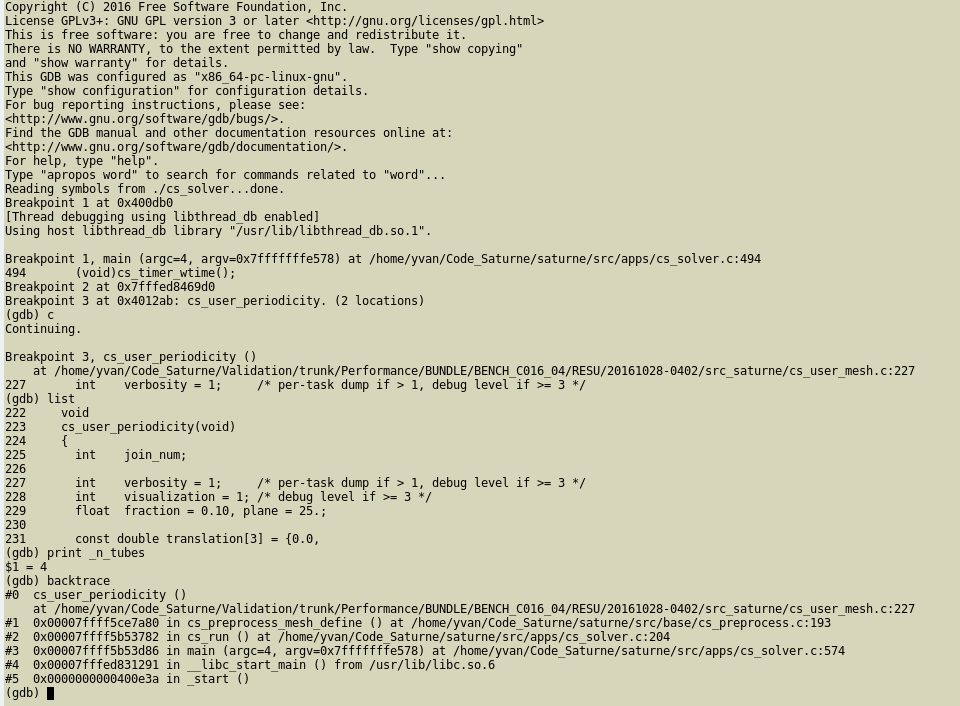
GDB in terminal mode
When started with the -tui option, GDB runs in a split terminal, with source on top, commands on bottom.
- Using the
CTRL+x+o key combination allows changing focus from one to the other.
- Using the
CTRL+l key allows refreshing the display.
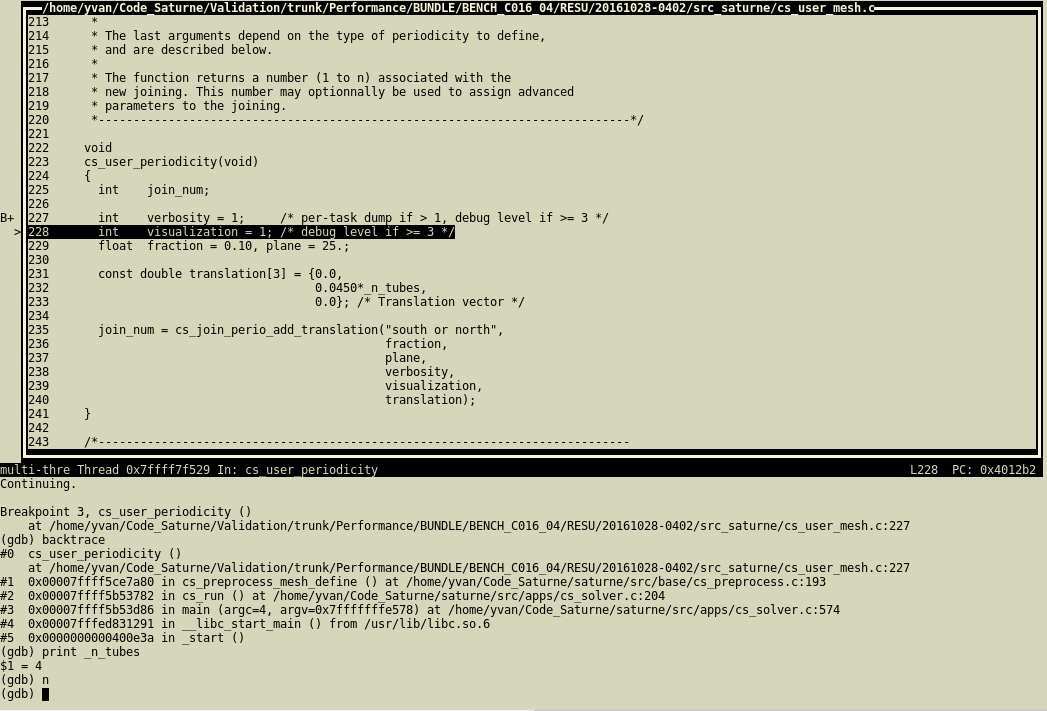
GDB with split screen
GDB may also be run under Emacs, which provides syntax highlighting of source code.
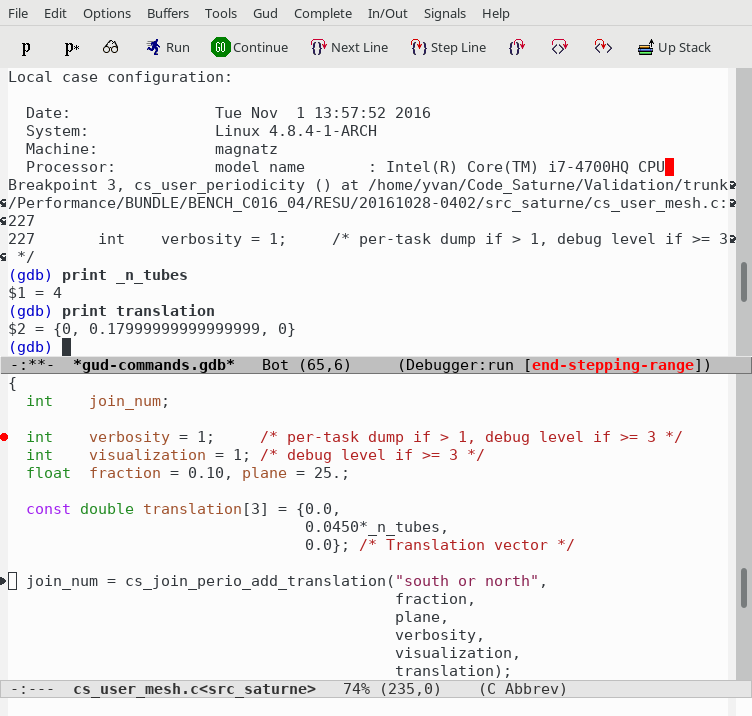
GDB under Emacs
Graphical front-end recommendations
Many graphical front-ends are available for gdb. When evaluating a front-end, we recommend to check for the following features:
- Must provide a console to allow combining text-based commands with the graphical elements, or at least easily-accessible widgets in which watchpoints and expressions to print can be typed.
- Should allow some means (such as command-line options) to connect to a GDB server through a socket interface (more on this later)
The DDD (Data Display Debugger) front-end is obsolete and uses a dated graphical toolkit, but has the advantage of combining a command prompt with graphical tools, and is very easy to use, so it might remain an option.
The Nemiver debugger also has a GDB back-end. It offers a clean display, but lacks the possibility of typing commands; everything must be done using the mouse and menus, which is often tedious. The project seems abandoned. KDbg is similar, slightly more practical, but does not seem to have been very active since 2018.
The gdbgui debugger seems promising, and a good potential successor to DDD. It is based on a web-browser interface,
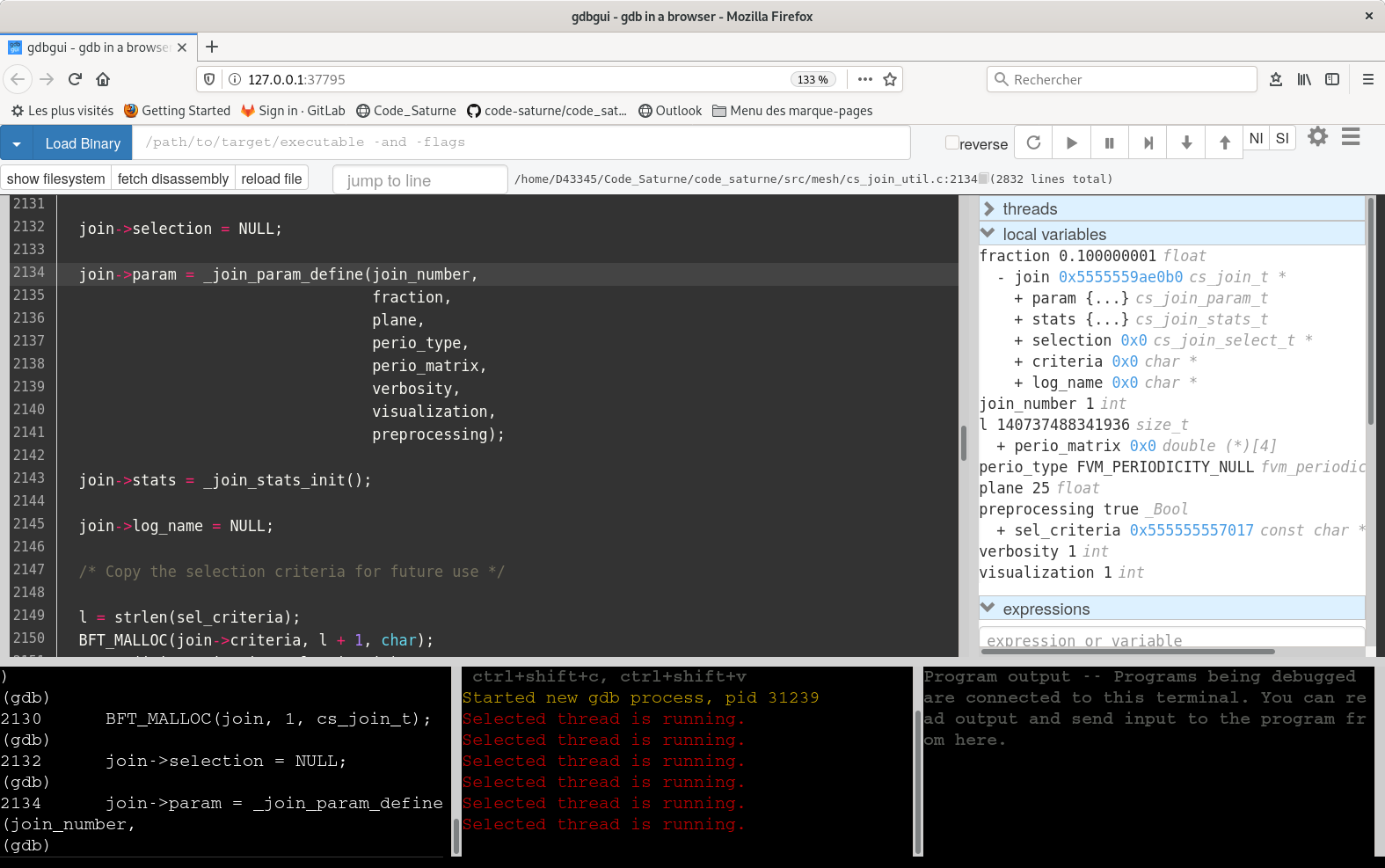
gdbgui
Full integrated development environments (including Qt Creator, Visual Studio Code, Eclipse, Kdevelop, Anjuta) are outside the scope of this documentation. Most members of the code_saturne development team mostly use lighter, less integrated tools, so will not be able to provide recommendations regarding their use.
GDB alternatives
The Eclipse CDT and Eclipse PTP (Parallel Tools Platform) environments integrate debuggers, including a parallel debugger, but may use a different syntax than "standalone" GDB, so they are not considered here (though feedback and recommendations around these tools are welcome).
The LLDB debugger is an interesting competitor to GDB, with a different (similar but more verbose) syntax. Is is not as widely available yet, and is not yet handled by the code_saturne debug scripts, though a user familiar with it could of course set it up.
The Valgrind tool suite
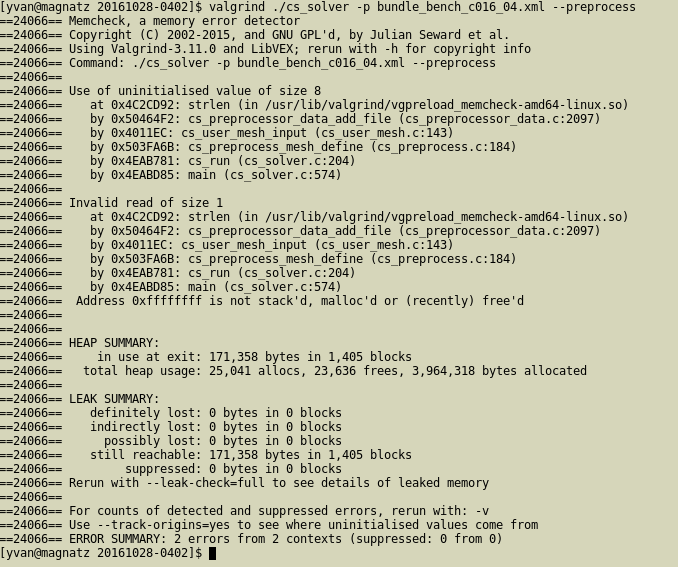
The Valgrind tool suite allows the detection of many memory management (and other) bugs.
- Dynamic instrumentation
- No need for recompilation
- Usable with any binary, but provides more info (i.e. code line numbers) with code compiled in debug mode
- Depending on tool used, run time and memory overhead from 10-100x.
- With default tool (Memcheck), 10x30.
- Use proactively, to detect bugs on small cases, before they become a problem in production cases.
Valgrind is easy to run:
- Prefix a standard command with
valgrind
- By default, uses the
memcheck tool.
- Tool may be changed using
valgrind –tool=/cachegrind/callgrind/drd/massif/...
- Valgrind may be combined with GDB using its
gdbserver mode.
- To use this mode, call
valgrind –vgdb-error=<number>
- The number represents the number of errors after which the gdbserver is invoked (0 to start immediately).
Valgrind in a terminal
GCC and clang sanitizers
Recent versions of the LLVM clang and GCC compilers have additional instrumentation options, allowing memory debugging with a lower overhead than Valgrind.
Address Sanitizer
For the most common errors, use AddressSanitizer, a fast memory error detector.
- For the code_saturne configure options, this means
CFLAGS=-fsanitize=address FCFLAGS=-fsanitize=address LDFLAGS=-fsanitize=address
- This may sometimes require specifying
export LD_LIBRARY_FLAGS=<path_to_compiler_libraries when the compiler is installed in a nonstandard path on older systems.
- On some machines, this may be unusable if memory resource limits are set (check using
ulimit -c
- Note that the resulting code will not be usable under Valgrind.
- Uninitialized values are not detected by Address Sanitizer (but may be detected by UndefinedBehaviorSanitizer).
- Out-of-bounds errors for arrays on stack (fixed size, usually small) are not detected by Valgrind, but may be detected by AddressSanitizer.
AddressSanitizer also includes a memory leak checker, which is useful but may also report errors due to system libraries, so to allow a "clean" exit, we may use:
``` export ASAN_OPTIONS=detect_leaks=0 ```
UndefinedBehaviorSanitizer
The UndefinedBehaviorSanitizer instrumentation is also useful to detect other types of bugs, such as division by zero, some memory errors, integer overflows, and more.
- This may sometimes require also specifying
-lubsan and even in some cases specify LD_LIBRARY_FLAGS
- For the code_saturne configure options, this means
CFLAGS=-fsanitize=undefined FCFLAGS=-fsanitize=undefined LDFLAGS=-fsanitize=undefined
- This may sometimes require specifying
export LD_LIBRARY_FLAGS=<path_to_compiler_libraries as per AddressSanitizer.
- Note that only code compiled with those options is instrumented.
Application to code_saturne
Starting code_saturne under a debugger
Several ways of running code_saturne under a debugger are possible:
- Using the GUI or the
domain.debug setting in cs_user_scripts.py to automatically run the code under a debugger.
- Set options in Run computation/Advanced options`
- As for regular runs, this will create a new directory under
RESU for each run and test.
- Preparing a run directory using
code_saturne run [options] –initialize then running the debugger manually from the run directory.
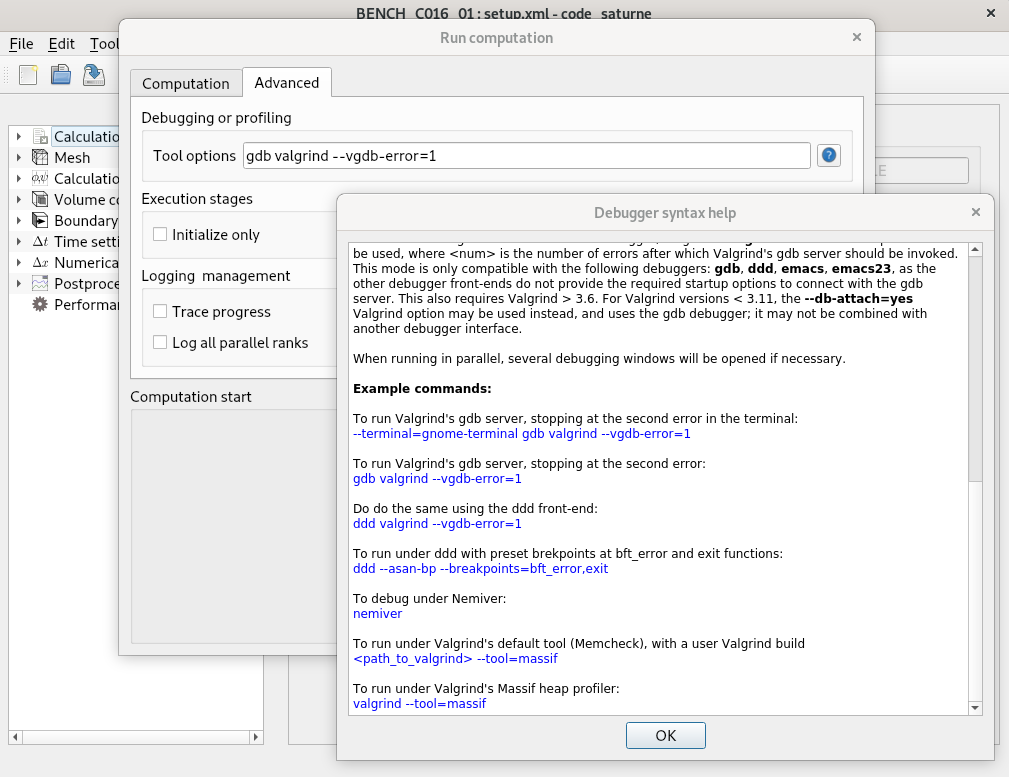
- If the code has crashed during a previous run, this is not necessary, as the matching run directory remains in a initialized state.
- Combining both approaches:
- Prepare a first run using the GUI or user script to handle the debugger syntax, then (re-)run the debugger manually.
Example of use of debugger wrapper
To allow for debugging parallel runs and combining GDB and Valgrind, GDB is run under a new terminal.
- The type of terminal chosen can by defined using the
--terminal option.
- Known issue: on some Debian 10-based systems, running under
gnome-terminal crashes GDB. Running under the default xterm or konsole works fine.
By default, xterm will be used. This usually leads to very small, hard to read fonts. This can be fixed by editing $HOME/.Xresources such as in the following example:
!xterm*font: *-fixed-*-*-*-18-*
xterm*faceName: Liberation Mono:size=10:antialias=false
xterm*font: 7x13
xterm*VT100.geometry: 120x60
URxvt*geometry: 120x60
URxvt.font: xft:Terminus:antialias=false:size=10
Starting code_saturne under a debugger manually
Starting the debugger manually in an execution directory avoids creating many directories and waiting for pre-processing before each run.
cd to the run directory under RESU/<run_id>.
- To determine the code options already configured, run
cat run_solver to view the execution commands.
- Add the debugger commands to this to run (unless already done through the GUI or user script).
- To make this easier, code_saturne provides a
cs_debug_wrapper.py script, in the bin directory of the source tree (and in the lib/python<version>/site-packages/code_saturne directory of an installed build).
- Run
cs_debug_wrapper.py --help for instructions.
- The XML file may be modified directly using
code_saturne gui <file> (ignoring the directory warning).
- If mathematical expressions are modified, and additional step is required. in this case, it is simpler to generate a new run.
- When modifying user-defined functions, do not forget to run
code_saturne compile -s src_saturne to update the cs_solver executable.
Running under vim
The code_saturne debug wrapper does not yet launching GDB under Vim. Various examples of use of that module are found on the web, explaining how Termdebug for example can be used.
Parallel Debugging
Parallel Debugging: MPI
Debugging parallel code_saturne runs is not very different from debugging serial runs.
- If a true parallel debugger such as TotalView or Arm DDT or is available, do not hesitate to use it (by adapting the
run_solver script in the exection directory), and ignore the rest of this slide.
- When no true parallel debugger is available, serial debuggers may be used.
- Usually one for each process, though using multiple program features allows running only selected ranks under a debugger.
- For example:
mpiexec -n 2 <program> : - n 1 <debug_wrapper> <program> : -n 3 <program> to debug rank 2 of 6
- The execution may not be restarted from the debugger; the whole parallel run must be restarted.
- Very painful if not automated.
- This is where the
cs_debug_wrapper.py script really becomes useful.
- For code_saturne under GDB, to determine a given process's rank, type:
print cs_glob_rank_id
Parallel Debugging: OpenMP
Debugging OpenMP data races is much more tricky.
- Most errors are due to missing
private attributes in OpenMP pragmas.
- In C, using local variable declarations avoids most of these, as those variables are automatically thread-private.
- Valgrind's DRD (Data Race Detector) tool is quite useful here.
- GCC's or clang's ThreadSanitizer is also very useful here.
- In both cases, to avoid false positives, GCC must be built with the
–disable-linux-futex configure option, so this requires a special build of GCC.

- With more recent versions of GCC, this may not be sufficient to avoid false positives...
- probably due to some optimizations in thread management.